Workspace Management
Last updated: April 10, 2026
Workspace Feature: Collaborate with your team
Our Workspace feature makes it easy for teams to collaborate, share insights, and stay aligned when analyzing brand visibility in LLM-generated answers.
Key Benefits
1. Shared Brand Tracking
All members of a workspace can view and analyze the same brands. This ensures everyone is working with consistent data and insights.
2. Collaborative Prompt Management
Custom prompts created within a workspace are visible to all members. This makes it easier to standardize analyses and build on each other’s work.
3. Team Alignment
Workspaces help keep your team aligned by providing a single source of truth for brand visibility performance across LLMs.
4. Streamlined Onboarding
New team members can quickly get up to speed by accessing existing brands and prompts without needing to recreate anything.
How to Use Workspaces
Each signed-in user is an owner of their dedicated workspace, to which all brands, custom prompts, groups and subscriptions are connected. To this workspace, one can invite other signed-in Trendos users as viewers or editors.
How to invite members to join your Workspace?
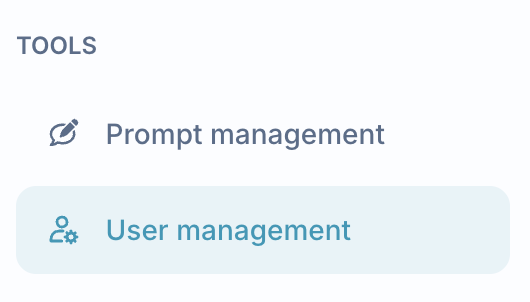
Head to “User management” in the bottom left side under the Tools.
Press “Invite user”

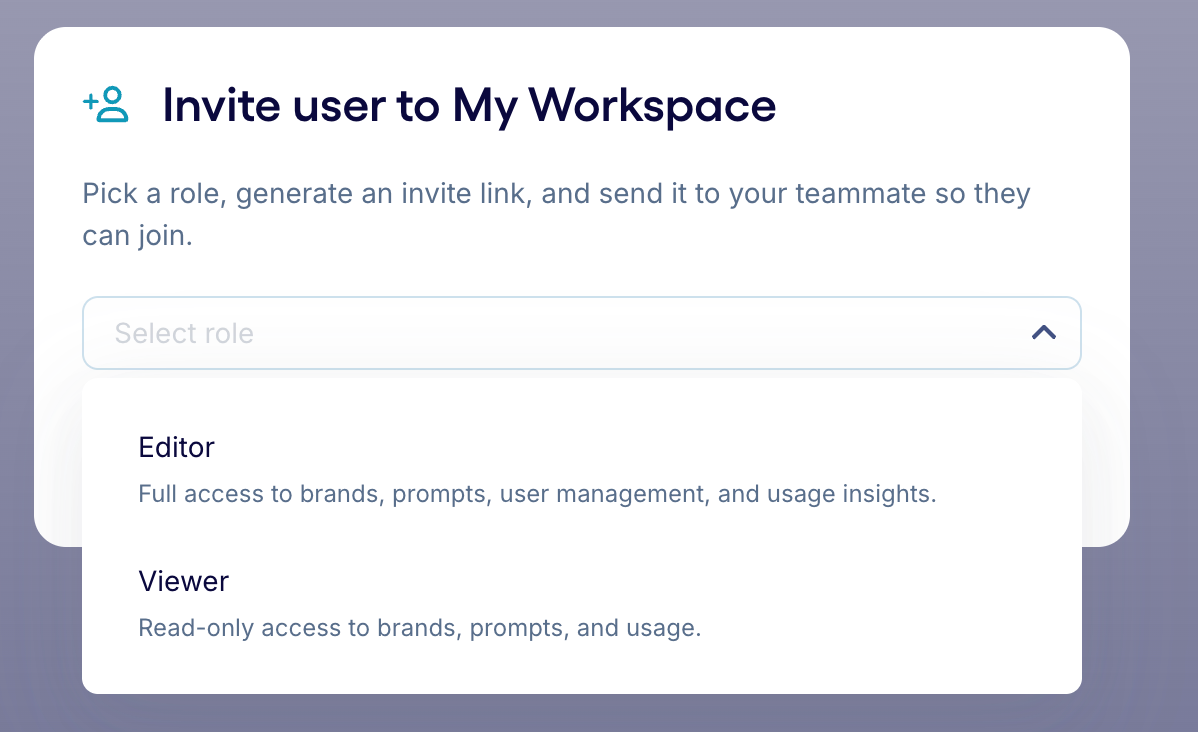
Pick a role you want to give to a member and generate invitation link.
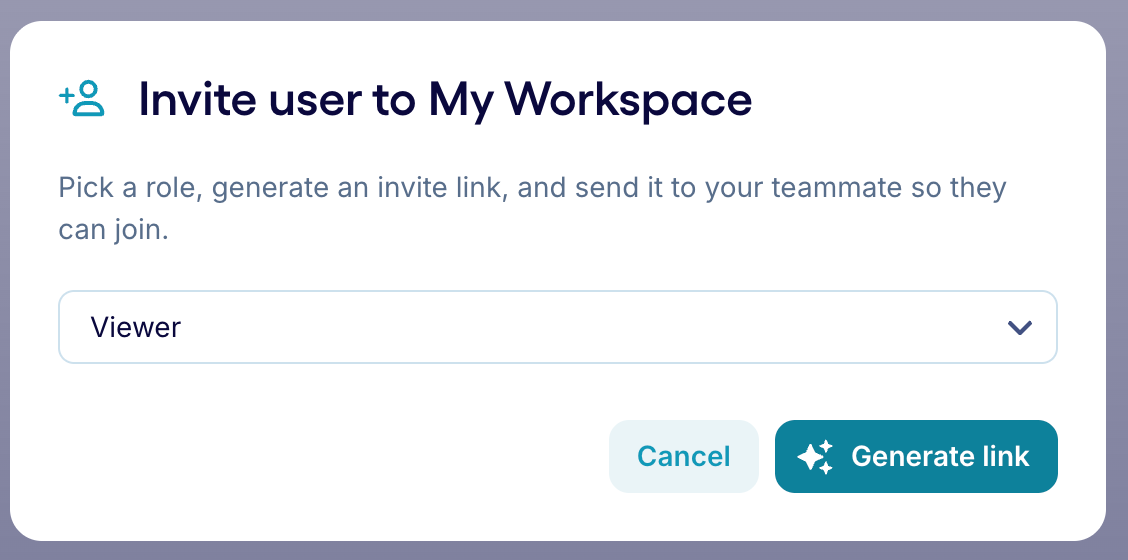
Share a link with your colleague
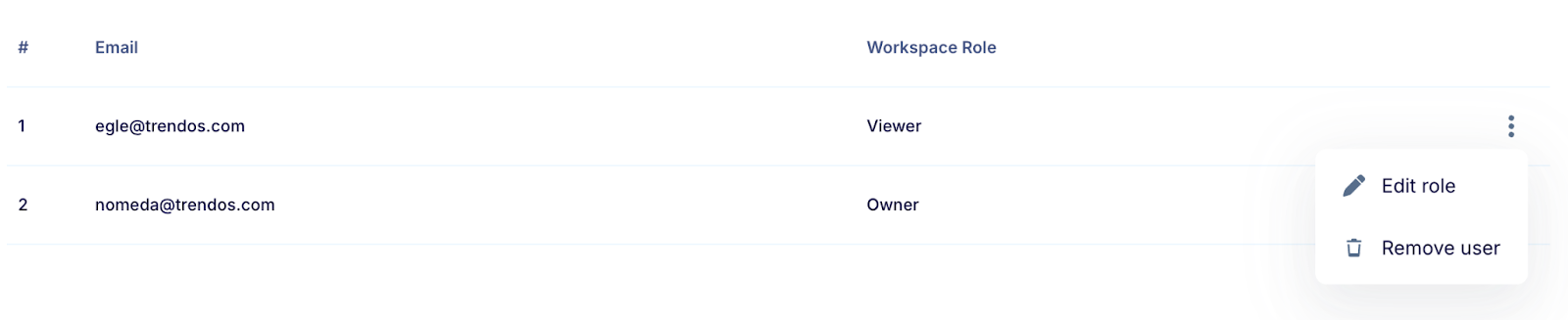
Manage the rights and access of the colleague in “User management”
How to change the name of your workspace?
In case you want to avoid the confusion and make sure everyone is aware of the workspace they are joining, you can change the name of default “My workspace” into something more fitting for your team. You can do it on the “All brands” page, by clicking the pencil icon near your workspace name.

Best Practices
Use clear naming conventions for prompts so your team understands their purpose
Regularly review shared prompts to keep them relevant
Limit duplicate prompts to avoid confusion
Invite only relevant stakeholders to keep the workspace focused
FAQs
Are there any limits of number of workspaces and members you can invite?
There are no limits on the number of members you can invite to a workspace, or on the number of workspaces you can belong to. The only exception is that you can be the owner of only one workspace.
Can I remove members?
Yes, workspace owners can manage membership, including removing users when needed.
What is the difference between Viewer and an Editor?
When inviting someone to your workspace, you can assign them one of two roles:
Viewer can:
View all brands tracked in the workspace
View custom prompts
View reports and dashboards
View groups
Viewers cannot make any changes to the workspace.
Editor can:
Add and edit brands
Create and edit custom prompts
Create and edit groups
Invite other members to the workspace
Manage subscriptions
Delete content
Note: only the workspace owner can remove members. Editors can invite new members but cannot revoke access.